MS MySI Scout
Sign in

Product documentation

MySI Scout Help Center

Short, practical guides for your complete job-search workflow.

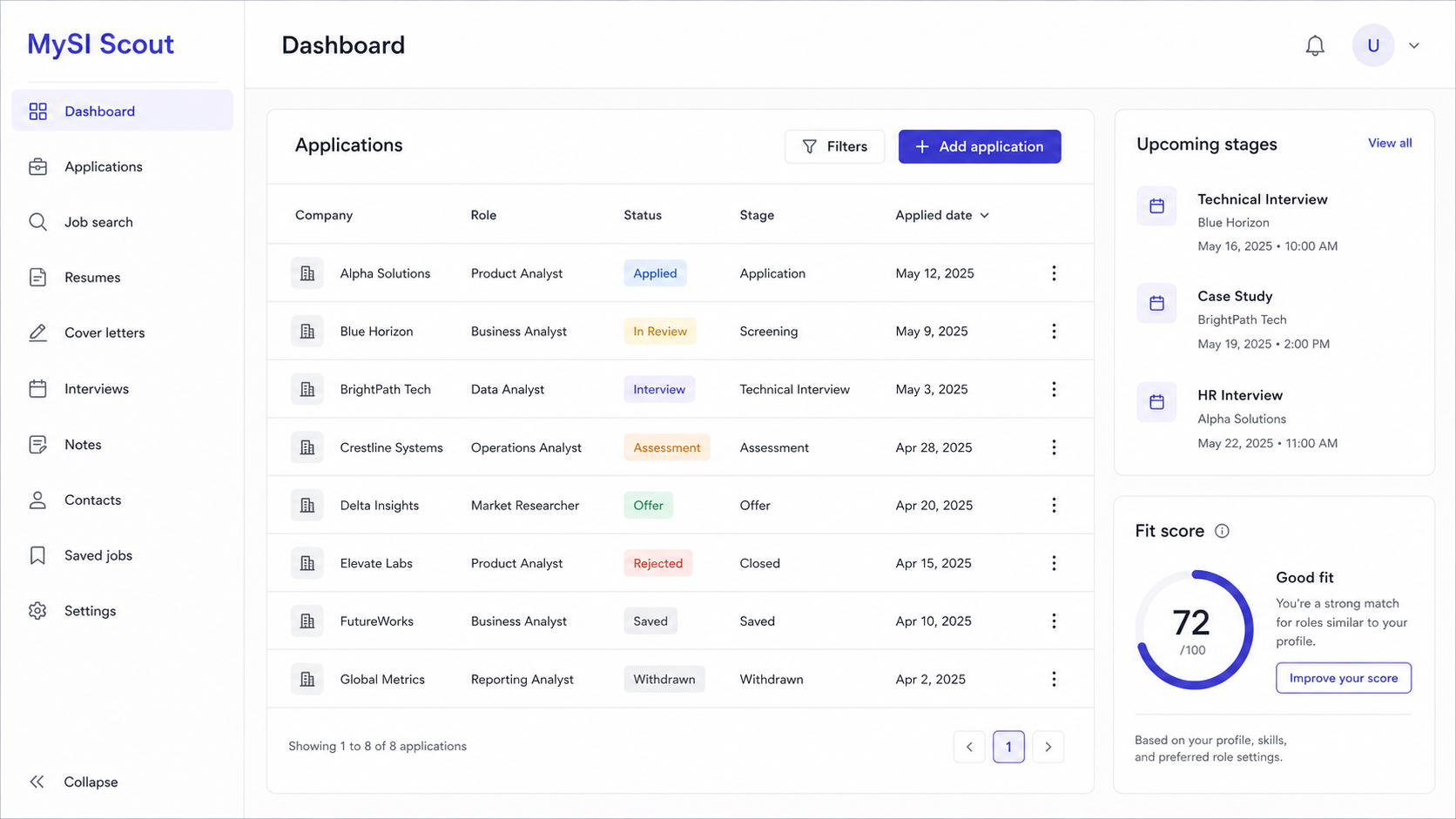
Illustrative MySI Scout workspace

Getting started

Set up your workspace in a few minutes.

Open →

What this helps you do

Getting Started turns an empty workspace into a useful decision system. It guides you through the minimum setup required to compare jobs with your experience and keep a real search moving.

What you get

After completing it, you have a CV for analysis, a signed-in browser extension and an optional Gmail connection for job alerts.

How to use it

  1. Create or import at least one CV first.
  2. Install the Chrome extension and sign in with the same email address.
  3. Analyse a job and save the opportunities you want to pursue as applications.
  4. Connect Gmail if you want LinkedIn job-alert links to reach Inbox.

Dashboard

See your pipeline, tasks, messages and upcoming interviews at a glance.

Open →

What this helps you do

Dashboard is your daily control panel. It combines the signals that otherwise live across several pages: application progress, open tasks, unread job alerts and the next scheduled conversations.

What you get

Use it at the start of a job-search session to decide what deserves attention today rather than opening every application one by one.

How to use it

  1. Open Dashboard after signing in.
  2. Choose a Pipeline period to compare application activity.
  3. Open an upcoming stage to jump directly to its application.

Inbox

Review job-alert messages and links that need your attention.

Open →

What this helps you do

Inbox is where MySI Scout delivers job-alert links discovered in your connected Gmail mailbox. It is not a replacement for Gmail; it is a focused review queue for opportunities.

What you get

You can open a posting, decide whether to analyse it, and clear the message once the opportunity has been handled.

How to use it

  1. Open Inbox from the menu and its unread counter.
  2. Read a message and open the job posting it contains.
  3. Mark messages as read or delete them when they no longer need attention.

Jobs

Search active roles collected from connected company feeds.

Open →

What this helps you do

Jobs is the shared opportunity board created from company career feeds. It helps you discover roles before they disappear and quickly turn a relevant role into a structured application.

What you get

Search and filter first, then use New Application to carry the known job title, company and link into your own pipeline.

How to use it

  1. Search by role, company, city or country.
  2. Sort and filter the table to narrow down opportunities.
  3. Choose New Application to open a prefilled application form with the available job data.

CVs

Manage the profiles MySI Scout uses to assess your fit.

Open →

What this helps you do

CVs stores the versions of your experience that MySI Scout uses for fit analysis. Keeping roles and preferences accurate makes recommendations more relevant than a generic resume comparison.

What you get

You can use a different CV for a leadership role, a hands-on engineering role, or another targeted application strategy.

How to use it

  1. Create a CV or import a PDF/TXT file.
  2. Add relevant roles as a comma-separated list.
  3. Describe your matching preferences and enable Auto Match if new jobs should be considered automatically.

Analyses

Understand fit, requirements, gaps and the recommendation before you apply.

Open →

What this helps you do

Analyses is the decision layer between finding a role and investing effort. It compares a selected CV with the job requirements, explains the match and highlights what may weaken the application.

What you get

You leave with context for a decision: pursue now, update your CV first, keep it for later, or avoid spending time on a low-fit role.

How to use it

  1. Open an existing analysis or start one from Jobs or the extension.
  2. Choose the CV that is genuinely relevant for this role.
  3. Read the score, matched requirements, gaps and recommendation together - not the score alone.
  4. Use that context before investing time in an application or interview preparation.

Applications

Keep each application, conversation and next step in one place.

Open →

What this helps you do

Applications is your personal pipeline, not just a list of submitted forms. It preserves why you applied, who referred you, what you sent, what comes next and the context needed before an interview.

What you get

Every opportunity has one reliable record, including stage history, useful research links and scheduled conversations.

How to use it

  1. Create an application from Jobs or directly with New Application.
  2. Set its status, stage, labels and Applied at date.
  3. Add a contact, referral, notes and useful links.
  4. Create Scheduled stages for recruiter calls and interviews.
  5. Use Save & Edit to stay on the form after saving.

Tasks

Capture the small next steps so no follow-up is missed.

Open →

What this helps you do

Tasks captures the small actions that often decide whether a search stays organised: send a follow-up, prepare a question, update a CV or schedule a conversation.

What you get

You can see unfinished work alongside the rest of your pipeline and mark it complete once the action is truly done.

How to use it

  1. Create a task with a title and optional description or due date.
  2. New tasks always start with status New.
  3. Move a task to Due or Completed when its state changes.
  4. Edit or delete tasks from Actions or their edit form.

Integrations

Connect Gmail for your personal job alerts.

Open →

What this helps you do

Integrations lets MySI Scout read job-alert messages from a Gmail mailbox you explicitly connect. This keeps new opportunities visible without manually copying every link from email.

What you get

You control each mailbox independently: check it now, pause processing, reconnect Google access or disconnect it completely.

How to use it

  1. Choose Connect Gmail and approve the Google OAuth prompt.
  2. For each mailbox, use Check now, enable, disable or disconnect.
  3. If you see Needs reconnection, connect the mailbox again to grant a fresh Google authorization.

Chrome extension

Assess jobs while browsing and keep application status current without switching context.

What this helps you do

The Chrome extension brings MySI Scout to the job page you are already reading. It avoids the copy-paste loop between LinkedIn, company career sites and your workspace.

What you get

On a supported job page you can select a CV, run an analysis and save or update your application status without losing the original job context.

How to use it

  1. Install the extension from the Chrome Web Store and pin it to the browser toolbar.
  2. Open a LinkedIn job or company careers page, then click the MS icon.
  3. Sign in with the same email as your workspace and enter the 6-digit code.
  4. Select a CV and choose Analyze. Review fit, gaps and recommendation.
  5. Set a status and labels to create or update an application while you browse.

MCP and AI agents

Connect MySI Scout to Codex, ChatGPT or another compatible MCP client.

What this helps you do

MCP connects your MySI Scout workspace to a compatible AI agent. Instead of copying job-search context into every conversation, you can let an agent read the information you approve and help with your existing workflow.

What you get

A connected agent can work with jobs, analyses, applications, CV metadata and tasks. Write actions are limited to creating or updating applications and tasks, and require explicit OAuth permission.

How to use it

  1. Add https://mysi.app/api/mcp as the server endpoint in your MCP client.
  2. Choose OAuth sign-in. The client opens MySI Scout in your browser.
  3. Sign in with your MySI Scout account and approve only the requested permissions.
  4. Start with read permissions. Grant write permissions only when you want the agent to create or update applications or tasks.